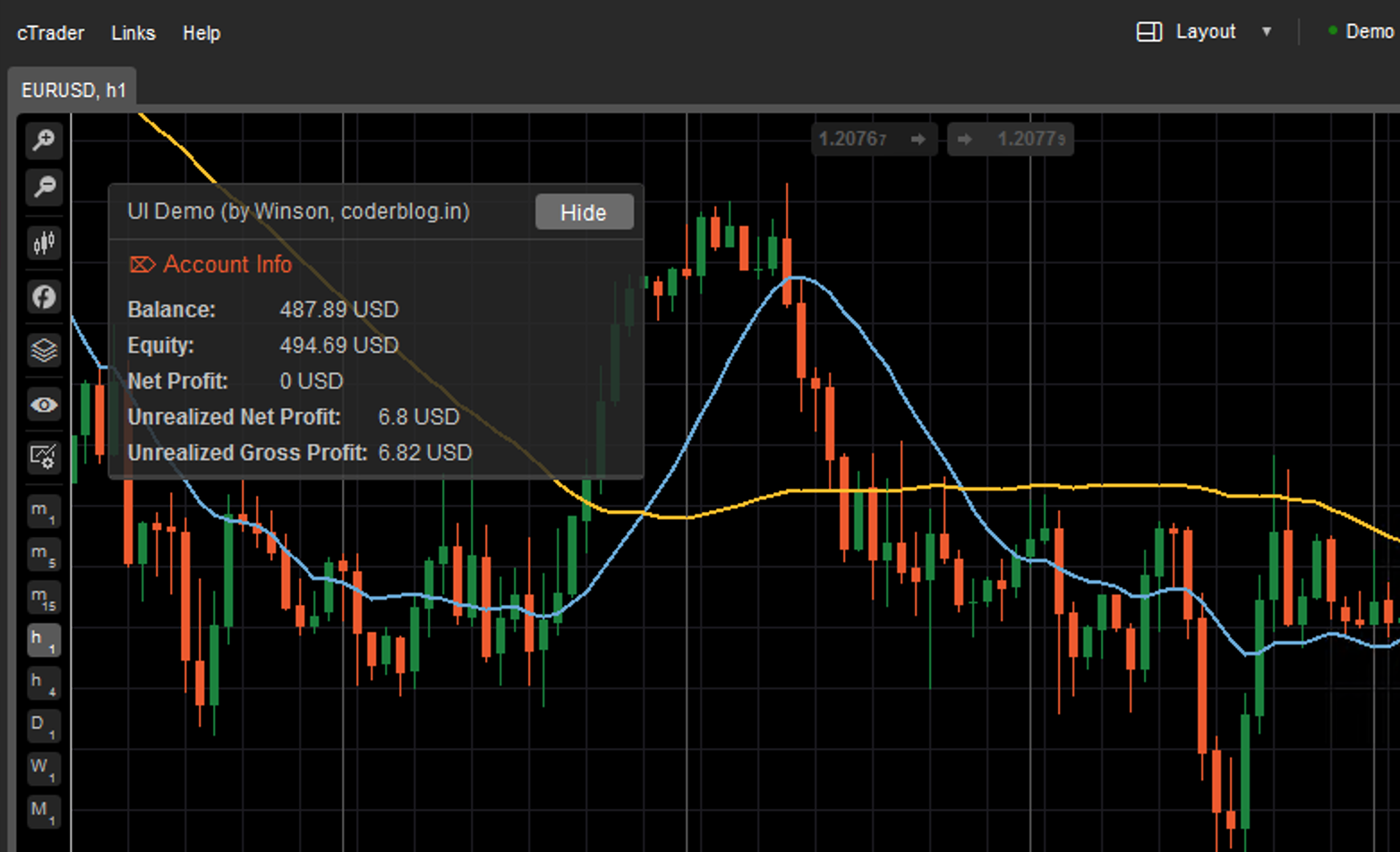
You can create the indicator and cBot in cTrader by C#, and cTrader can use all of the C# libs to help you to your product! I will show you how to create a pretty UI panel in cTrader.
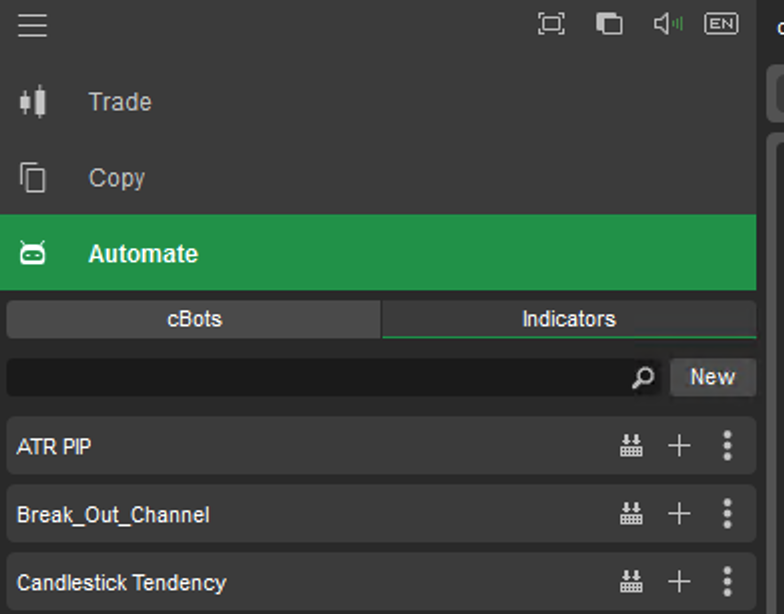
You need to download and install a window version cTrader, and open the “Automate — Indicators” for creating a new indicator:
And the base operation you can read the cTrader Offical document. For this time, I will create an indicator to display the base account information as below:
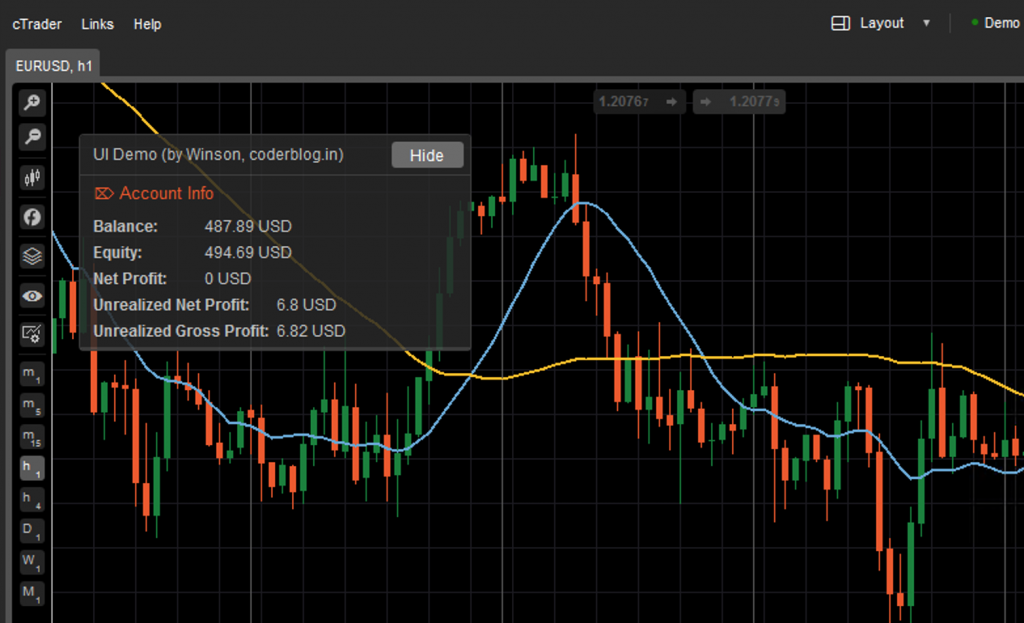
Create a StackPanel for the main container
StackPanel mainPanel = new StackPanel();
Create a Border to wrap the main panel and set the style
var border = new Border
{
    VerticalAlignment = VerticalAlignment.Top,
    HorizontalAlignment = HorizontalAlignment.Left,
    Style = Styles.CreatePanelBackgroundStyle(),
    Margin = "20 40 20 20",
    Width = 300,
    Height = 250,
    Child = mainPanel
};
The style clss function:
public static Style CreatePanelBackgroundStyle()
{
    var style = new Style();
    style.Set(ControlProperty.CornerRadius, 3);
    style.Set(ControlProperty.BackgroundColor, GetColorWithOpacity(Color.FromHex("#292929"), 0.85m), ControlState.DarkTheme);
    style.Set(ControlProperty.BackgroundColor, GetColorWithOpacity(Color.FromHex("#FFFFFF"), 0.85m), ControlState.LightTheme);
    style.Set(ControlProperty.BorderColor, Color.FromHex("#3C3C3C"), ControlState.DarkTheme);
    style.Set(ControlProperty.BorderColor, Color.FromHex("#C3C3C3"), ControlState.LightTheme);
    style.Set(ControlProperty.BorderThickness, new Thickness(1));
    return style;
}

private static Color GetColorWithOpacity(Color baseColor, decimal opacity)
{
    var alpha = (int)Math.Round(byte.MaxValue * opacity, MidpointRounding.AwayFromZero);
    return Color.FromArgb(alpha, baseColor);
}
Add the border control into the Chart
Chart.AddControl(border);
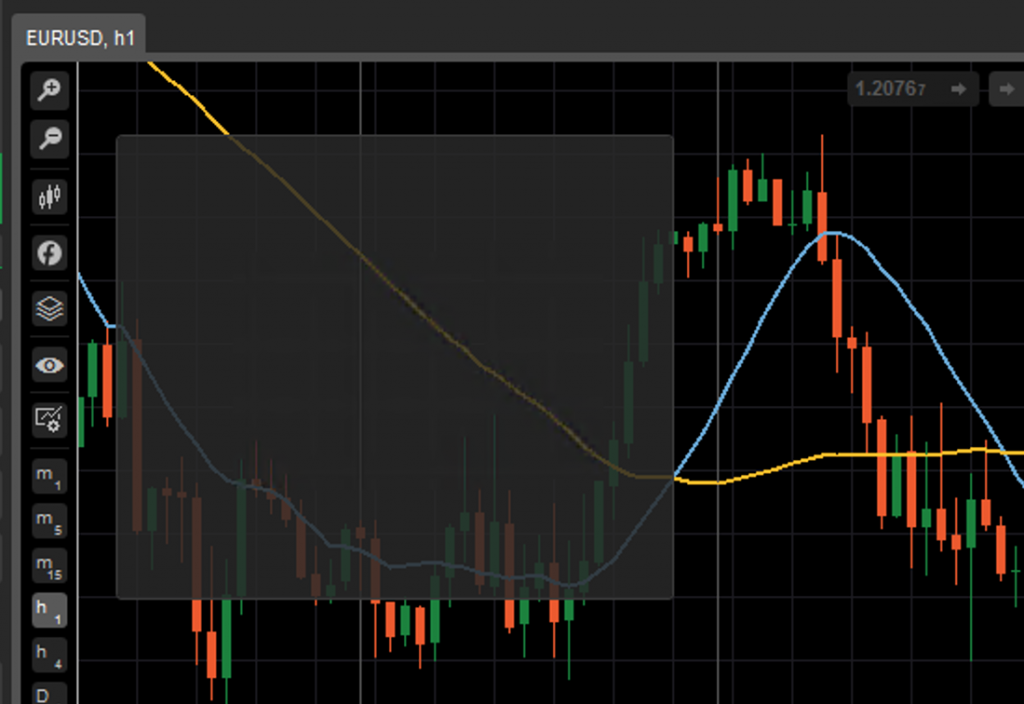
After that we can get a pretty panel, so easy, right 🙂
Create the header object, this is also a border control, but we need to use the grid to control the layout, and use the TextBlock control to display the text, in the end, I want to add a ToggleButton for control show or hide the panel:
var headerBorder = new Border
{
    BorderThickness = "0 0 0 1",
    Style = Styles.CreateCommonBorderStyle() //another custom style
};
//use the grid for the layout
var headerGrid = new Grid(1, 2);
headerGrid.Columns[1].SetWidthInPixels(60);
var title = new TextBlock
{
    Text = "UI Demo (by Winson, coderblog.in)",
    Margin = "10 7",
    FontSize = 12,
    Style = Styles.CreateHeaderStyle()
};
headerGrid.AddChild(title, 0, 0);

//Create the button
hideBtn = new ToggleButton
{
    Text = "Hide",
    Width = 55,
    Height = 20,
    FontSize = 8,
    Margin = new Thickness(0, 5, 5, 5)
};
//define the on click event
hideBtn.Click += HideBtn_Click;
//add the button to grid
headerGrid.AddChild(hideBtn, 0, 1);
//set the border child to the grid
headerBorder.Child = headerGrid;
//add the border into main panel
mainPanel.AddChild(headerBorder);
Ok, now we get the header in the panel:
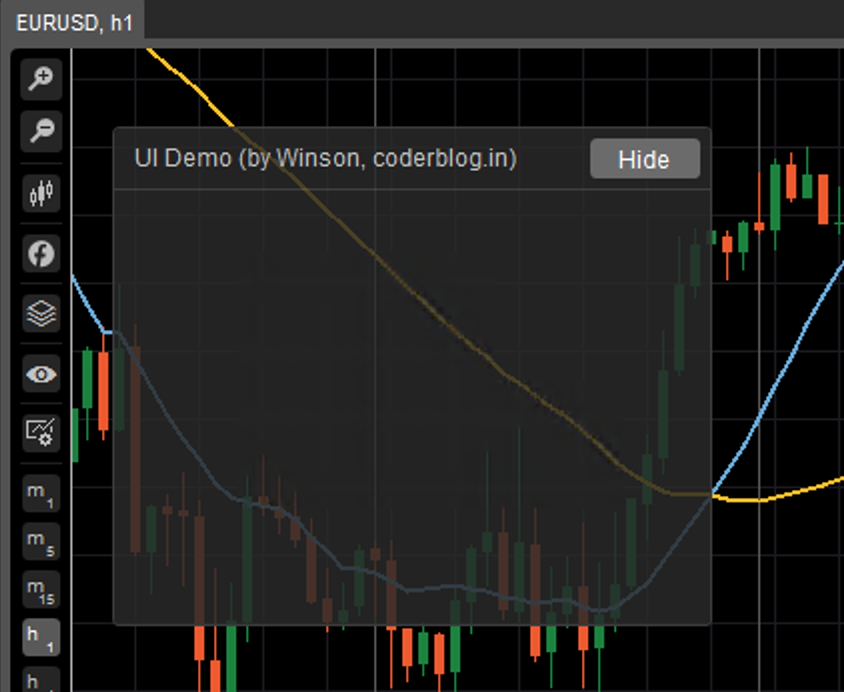
That’s not bad, right?😁 Next, we need to create a content panel. We also use the border to wrap the layout:
contentBorder = new Border
{
    BorderThickness = "0 0 0 1",
    //Height = 250,
    Style = Styles.CreateCommonBorderStyle()
};
StackPanel contentPanel = new StackPanel();
contentPanel.Orientation = Orientation.Vertical;
contentBorder.Child = contentPanel;
mainPanel.AddChild(contentBorder);
And create the account info in the content panel. Create the title for account info:
#region Account Info
var accountInfoBoarder = new Border
{
    BorderThickness = "0 0 0 1",
    VerticalAlignment = VerticalAlignment.Stretch,
    Style = Styles.CreateCommonBorderStyle()
};
StackPanel accountInfoPanel = new StackPanel();
accountInfoPanel.Orientation = Orientation.Vertical;
#region Account Info Title Row
StackPanel accountInfoTitleRow = new StackPanel();
accountInfoTitleRow.Margin = new Thickness(10, 5, 5, 5);
accountInfoTitleRow.Orientation = Orientation.Horizontal;
var lbAccountInfoTitle = new TextBlock
{
    Text = "⌦ Account Info",
    FontSize = 13,
    ForegroundColor = titleColor,
    Style = Styles.CreateHeaderStyle()
};
accountInfoTitleRow.AddChild(lbAccountInfoTitle);
accountInfoPanel.AddChild(accountInfoTitleRow);
#endregion
Create the balance panel to show the balance information
#region Balance Row
StackPanel balanceRow = new StackPanel();
balanceRow.Margin = new Thickness(10, 5, 5, 5);
balanceRow.Orientation = Orientation.Horizontal;
var lbBalance = new TextBlock
{
    Text = "Balance:",
    Width = labelWidth,
    FontSize = fontSize,
    FontWeight = FontWeight.Bold,
    Style = Styles.CreateHeaderStyle()
};
balanceRow.AddChild(lbBalance);
lbBalanceValue = new TextBlock
{
    Text = Account.Balance.ToString() + " " + Account.Currency,
    FontSize = fontSize,
    Style = Styles.CreateHeaderStyle()
};
balanceRow.AddChild(lbBalanceValue);
accountInfoPanel.AddChild(balanceRow);
#endregion
Create the panel to show the equity information
#region Equity Row
StackPanel equityRow = new StackPanel();
equityRow.Margin = new Thickness(10, 0, 5, 5);
equityRow.Orientation = Orientation.Horizontal;
var lbEquity = new TextBlock
{
    Text = "Equity:",
    Width = labelWidth,
    FontSize = fontSize,
    FontWeight = FontWeight.Bold,
    Style = Styles.CreateHeaderStyle()
};
equityRow.AddChild(lbEquity);
lbEquityValue = new TextBlock
{
    Text = Account.Equity.ToString() + " " + Account.Currency,
    FontSize = fontSize,
    Style = Styles.CreateHeaderStyle()
};
equityRow.AddChild(lbEquityValue);
accountInfoPanel.AddChild(equityRow);
#endregion
Ok, you can add more information just like the above structure, and below codes for show/hide the panel in button click event:
private void HideBtn_Click(ToggleButtonEventArgs obj)
{
    if (obj.ToggleButton.IsChecked)
    {
        contentBorder.IsVisible = false;
        hideBtn.Text = "Show";
    }
    else
    {
        contentBorder.IsVisible = true;
        hideBtn.Text = "Hide";
    }
}
You can download the full source code below
cTraderUIDemo.zip (3172 downloads ) 
About the Author